
Digital Human Talking-Head Video: One Photo and One Voice Clip
Turn a single portrait photo and a voice clip into a digital-human talking-head video with an AI agent. Learn how the TTS-to-avatar chain works, which tools to use, and how to batch new scripts.
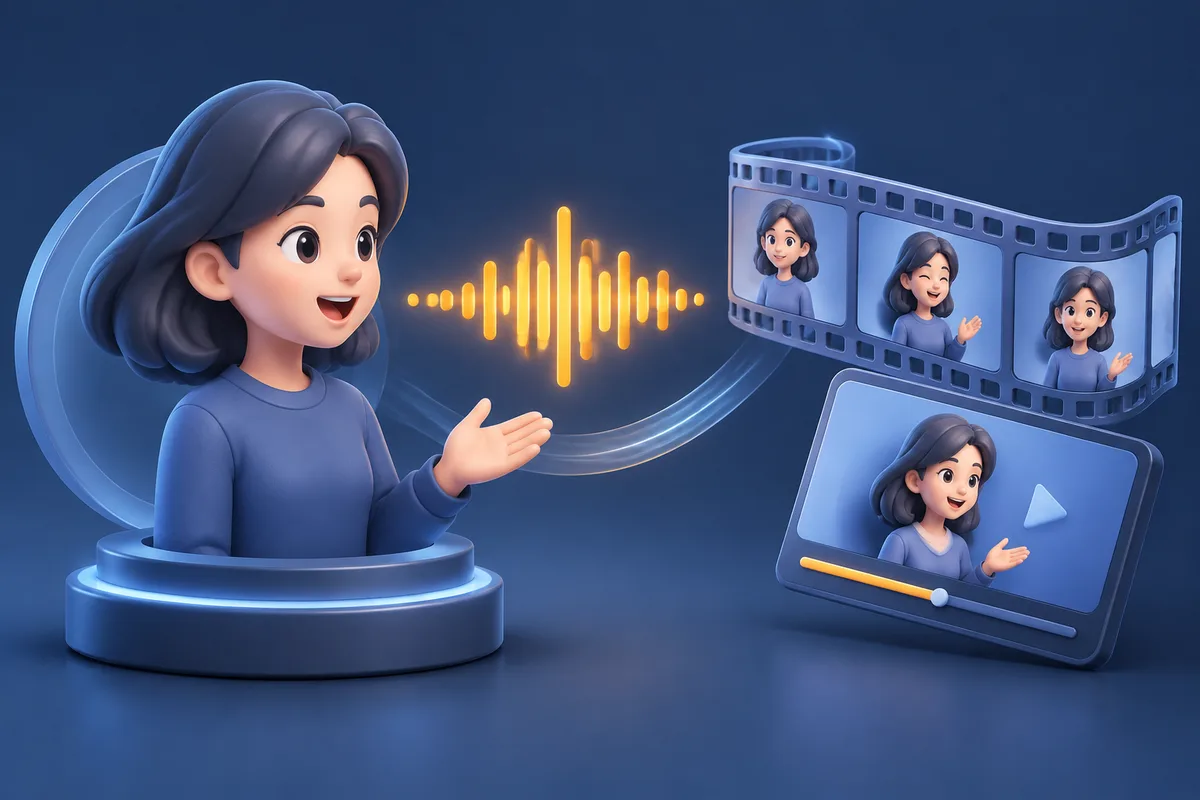
Tool names in this guide are for reference only and may have changed or been renamed. Please use the latest tools in the tool marketplace when implementing.
Key takeaways
- Turn one portrait plus audio into a lip-synced talking-head video
- Run the TTS-to-digital-human chain inside one agent
- Batch-swap scripts to reuse — fits commerce, narration and training
Tools used
Why talking-head video is such a chore
Producing one digital-human talking-head video usually spans several services: first the voiceover — recorded by a person or bought from a TTS service; then an avatar platform to match that audio to a face; and if the lip motion is off, another pass to fix it. Every step is its own account, its own API, its own bill, with assets exported and re-imported between tools. Batching dozens of scripts turns this into a nightmare.
For teams that ship continuously — live-commerce, spokesperson clips, training content — the real bottleneck isn't "can we make one," it's "can we batch-produce them reliably and cheaply with one process." Splitting voiceover and avatar into two isolated steps makes that hard.
The workflow in four steps
Abstract "script → voice → talking video" into one reproducible loop and hand it to a single agent that runs the whole chain:
- Prepare a script and one portrait photo (use neutral, licensed sample assets).
- Convert the script into natural speech.
- Drive lip motion with the photo plus the voice to generate a talking video.
- (Optional) Further align the lips, then batch new scripts to reuse the setup.
How to do each step
The whole chain runs through natural-language instructions in any MCP-capable agent — no switching between vendor dashboards.
Step 1: Prepare the assets
Have a script ready and one clear, front-facing portrait photo. For demos, use neutral sample material (for example a licensed stock portrait and a generic product blurb); avoid unlicensed likenesses of real people.
Step 2: Script to natural speech
Tell the agent: use ae to turn this script into natural speech. It calls a speech-synthesis tool (such as ae_f5_tts) to read the text into an audio clip. This step defines how the final clip sounds, so test a line or two to confirm the voice and pacing before converting the full script.
Step 3: Photo + voice drive the talking head
Hand the portrait and the audio from the previous step to the agent: use ae to make the person in this image say this. It calls a talking-head tool (such as ae_davinci_magihuman) that uses the image plus audio to drive lip motion and generate a talking video.
Step 4: Lip-sync polish and batch reuse
If the lips and voice aren't well aligned, ask the agent to run a lip-sync tool (such as ae_latentsync) for a cleanup pass. Once you've locked in a portrait and settings you like, just swap the script and rerun steps 2 and 3 to batch out many clips.
| Aspect | Separate voiceover + avatar services | One agent, one chain |
|---|---|---|
| Accounts / keys | One per service | One key for all |
| Hand-off | Manual audio export/import | Tools pass work automatically |
| New scripts | Rerun the whole flow each time | Swap script and rerun |
| Lip-sync fix | Find another tool | One extra step in the same chain |
How to get started
- Sign up for AgentEarth — new users get 1,000 free credits.
- In agents like WorkBuddy or Trae, search for "AgentEarth" and connect in-app; or paste a one-line MCP config into Claude Code / Cursor / VSCode.
- Just give a natural-language instruction, e.g. use ae to voice this script and make this portrait say it, and the agent picks the tools and runs them in order.
FAQ
Does it support natural-sounding voices? Yes. Generate speech first with a speech-synthesis tool (such as ae_f5_tts), then drive the talking head, for a more natural result.
Is a single photo enough? The talking-head generation takes one clear, front-facing portrait as its main input; paired with the voice clip it drives the lip motion — no pre-recorded video needed.
Can I batch many clips from new scripts? Yes. Lock the portrait and settings, then swap only the script and rerun the voice and talking-head steps to produce many videos.
Why generate the voice first instead of using raw text? The talking-head tool is driven by audio, so it needs a voice clip to sync lips against. Generating speech as a separate first step also lets you audition the voice, fix pronunciation and adjust pacing before committing to the video render — much cheaper than discovering a bad read after the clip is finished. It also means the same audio can be reused across different portraits, or the same portrait reused across different scripts, without regenerating the part you already like.
Sign up for credits · Browse 2,400+ tools · Integration guide